
- 2026.10.14 XLOOKUP vs VLOOKUP in Google Sheets: the 2-minute version
- 2026.10.14 Tap Ledger: log a coffee in two taps, total it in Sheets You are here
- 2026.10.14 A habit tracker that can leave the app: check-ins to CSV
- 2026.10.13 Your Dashboard Refreshed. Did Its Source Data?
- 2026.07.28 The Awkward Problems in Calendar-Based Attendance Tracking
- 2026.07.26 How One Shared Sheet Link Leaks Company Data
- 2026.07.23 Bad Form Auto-Replies Damage Customer Trust
- 2026.07.13 ChatGPT API Costs Quietly Leak Money If You Do Not Count Them
- 2026.06.20 Cut Your Monthly SaaS Bill: Rent vs Own Your Automation
- 2026.06.19 How Much Does Adding AI Cost? The One Exception to Zero-Cost Automation
- 2026.06.19 Automating Your Work with Google Apps Script — The Complete Guide
- 2026.06.16 How a Multi-User Inspection App Is Different
- 2026.06.10 Inventory in Google Sheets: How Far Automation Goes
- 2026.06.08 The Truth About Zero Upkeep: Why It's Free, and the Exceptions
- 2026.06.06 Outsource vs Build vs SaaS: Compared by Cost
Tap Ledger: log a coffee in two taps, total it in Sheets
A small expense app with presets, a month view and on-device receipt reading. Export to CSV and rebuild the same monthly totals in Google Sheets with SUMIFS.
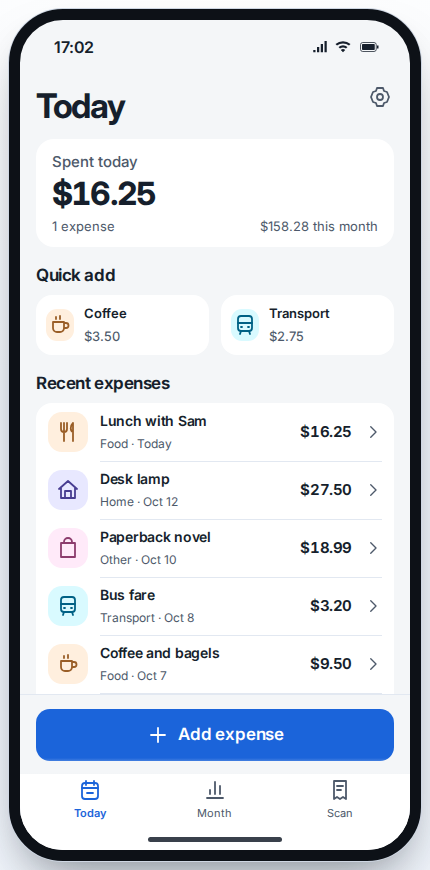
Tap Ledger saves a coffee in two taps, reads a receipt total on your device and exports cents-based CSV. I loaded that CSV into Google Sheets and four SUMIFS formulas matched the app’s month total to the cent.
Expense apps don’t lose to bad math. They lose to the moment you’re holding a coffee and the app wants a form. My Tap Ledger demo tries to stay out of the way: tap a preset, check it, save.
Everything in it is fictional: the expenses, “Sam” and the Willow Coffee receipt. No account, no login.
Two taps for a coffee
Today shows what you spent today and this month, two Quick add presets and your recent expenses.
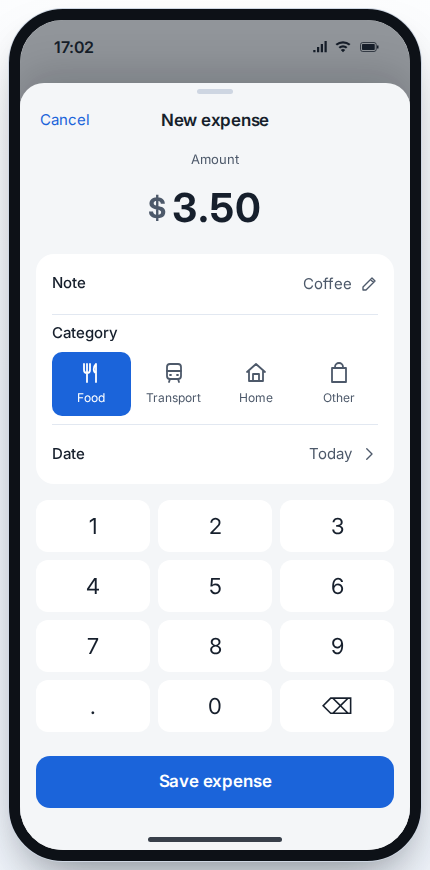
Tap Coffee $3.50. A sheet opens with the amount, note, category and date already filled in. Tap Save expense. That’s the two taps.
When I ran it, “Spent today” went from $16.25 to $19.75 and the month from $158.28 to $161.78.
The review step is on purpose: a preset that saved on the first touch would also save every accidental touch. If the coffee was $4.10, fix it on the keypad before saving.
A month you can read in five seconds
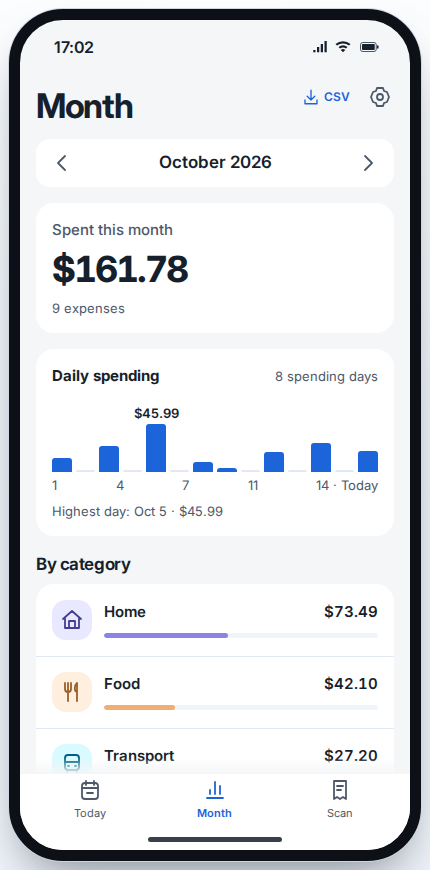
Month has a bar per spending day, the highest day and totals by category. With the demo data plus my coffee: Home $73.49, Food $42.10, Transport $27.20, Other $18.99. The CSV button lives at the top of this screen.
The receipt is read on your phone, not uploaded
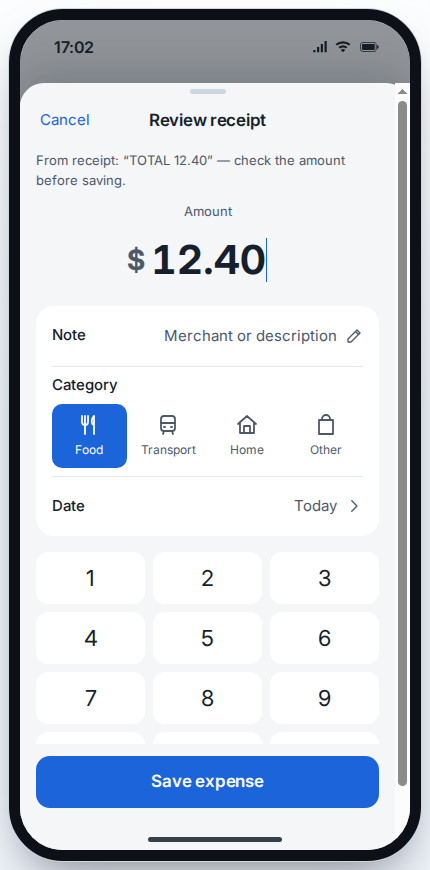
Scan has a Try a sample button with a fake Willow Coffee receipt. In my test it showed “Found $12.40”, then opened a review sheet quoting the line it used: TOTAL 12.40.
The text recognition runs in the browser with Tesseract.js. The browser downloads the recognition files, but the photo itself is not sent to a server.
Recognition can be wrong, so it never saves by itself. You check the amount, fix it if needed, then save.
From CSV to Google Sheets totals
This is the part I care about most. An app you can’t leave is a trap with nice buttons.
The export has five columns: id, date, category, amountCents, note. Money is stored as whole cents (350 = $3.50), so totals don’t drift from decimal rounding.
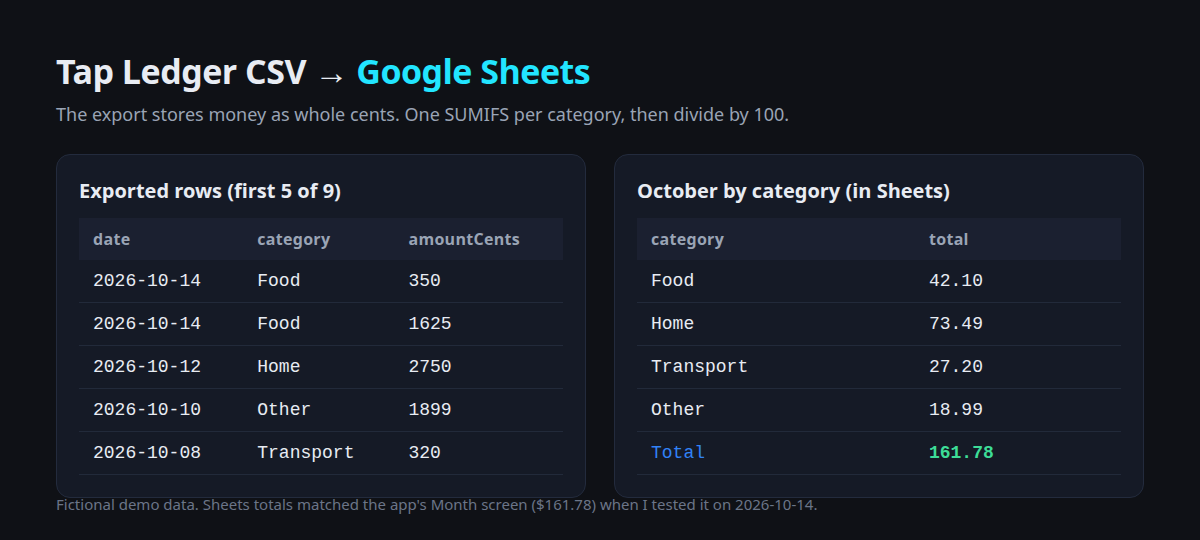
Import the CSV into a sheet (File → Import, or paste it in). Put category names in G1:G4, then in H1:
=SUMIFS($D$2:$D, $C$2:$C, G1,
        $B$2:$B, ">="&DATE(2026,10,1),
        $B$2:$B, "<"&DATE(2026,11,1)) / 100
Fill it down to H4 and add =SUM(H1:H4) under it. In my scratch sheet that gave Food 42.10, Home 73.49, Transport 27.20, Other 18.99 and a total of 161.78, the same as the app’s month screen.
Three things that bit me or almost did:
- Divide once, at the end.
amountCentsis an integer. Sum the cents first, then/100. Don’t convert every row. - Check the dates are real dates.
=ISDATE(B2)returnedTRUEin my sheet (US locale). If yours saysFALSE, the date filters quietly match nothing and every total shows 0. - Use
<the first of next month, not<=the 31st. Then you never have to remember which months have 30 days.
What the demo does not do
- Expenses live in this browser’s storage. Clearing site data or switching phones leaves them behind. CSV is your copy.
- There is no live sync to Google Sheets and no Apps Script backend in the public demo. The CSV is a snapshot; export again for newer rows.
- I tested it in desktop Chrome at phone size, not on a physical iPhone.
If you wanted the save button to land straight in a private Google Sheet, that would be an Apps Script web app sitting in the middle, checking who is sending rows before appending them.
That’s a different build from this demo, and I’d scope it with you first.
Try Tap Ledger and log a fake coffee. Want a tiny app like this that feeds your own sheet? Tell me what you track and who needs to see it.
New posts
Get an email when a new post is out.
Just the link and a one-line summary. No ads.
- 2026.10.14 XLOOKUP vs VLOOKUP in Google Sheets: the 2-minute version
- 2026.10.14 Tap Ledger: log a coffee in two taps, total it in Sheets You are here
- 2026.10.14 A habit tracker that can leave the app: check-ins to CSV
- 2026.10.13 Your Dashboard Refreshed. Did Its Source Data?
- 2026.07.28 The Awkward Problems in Calendar-Based Attendance Tracking
- 2026.07.26 How One Shared Sheet Link Leaks Company Data
- 2026.07.23 Bad Form Auto-Replies Damage Customer Trust
- 2026.07.13 ChatGPT API Costs Quietly Leak Money If You Do Not Count Them
- 2026.06.20 Cut Your Monthly SaaS Bill: Rent vs Own Your Automation
- 2026.06.19 How Much Does Adding AI Cost? The One Exception to Zero-Cost Automation
- 2026.06.19 Automating Your Work with Google Apps Script — The Complete Guide
- 2026.06.16 How a Multi-User Inspection App Is Different
- 2026.06.10 Inventory in Google Sheets: How Far Automation Goes
- 2026.06.08 The Truth About Zero Upkeep: Why It's Free, and the Exceptions
- 2026.06.06 Outsource vs Build vs SaaS: Compared by Cost