
The Permission Trap in Spreadsheet Approval Systems
The permission, approval-history, and audit-log risks that appear when a spreadsheet becomes an approval workflow.
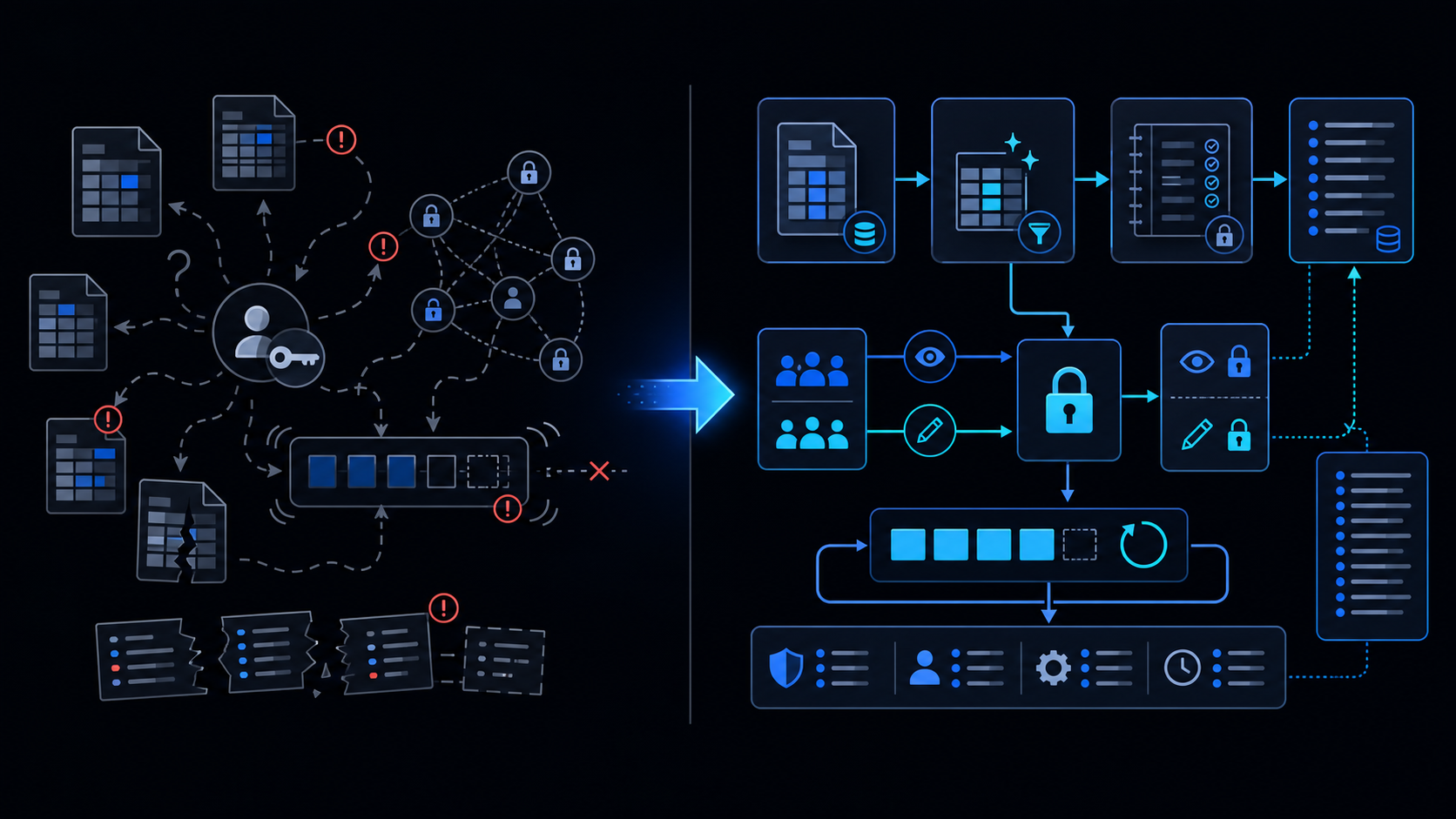
Conclusion first: Building an approval system inside Google Sheets requires simultaneous design of account-level permissions, protected ranges, append-only audit logs, and execute-as semantics; otherwise permission explosions and audit integrity loss occur immediately.
1. Permission Model Granularity
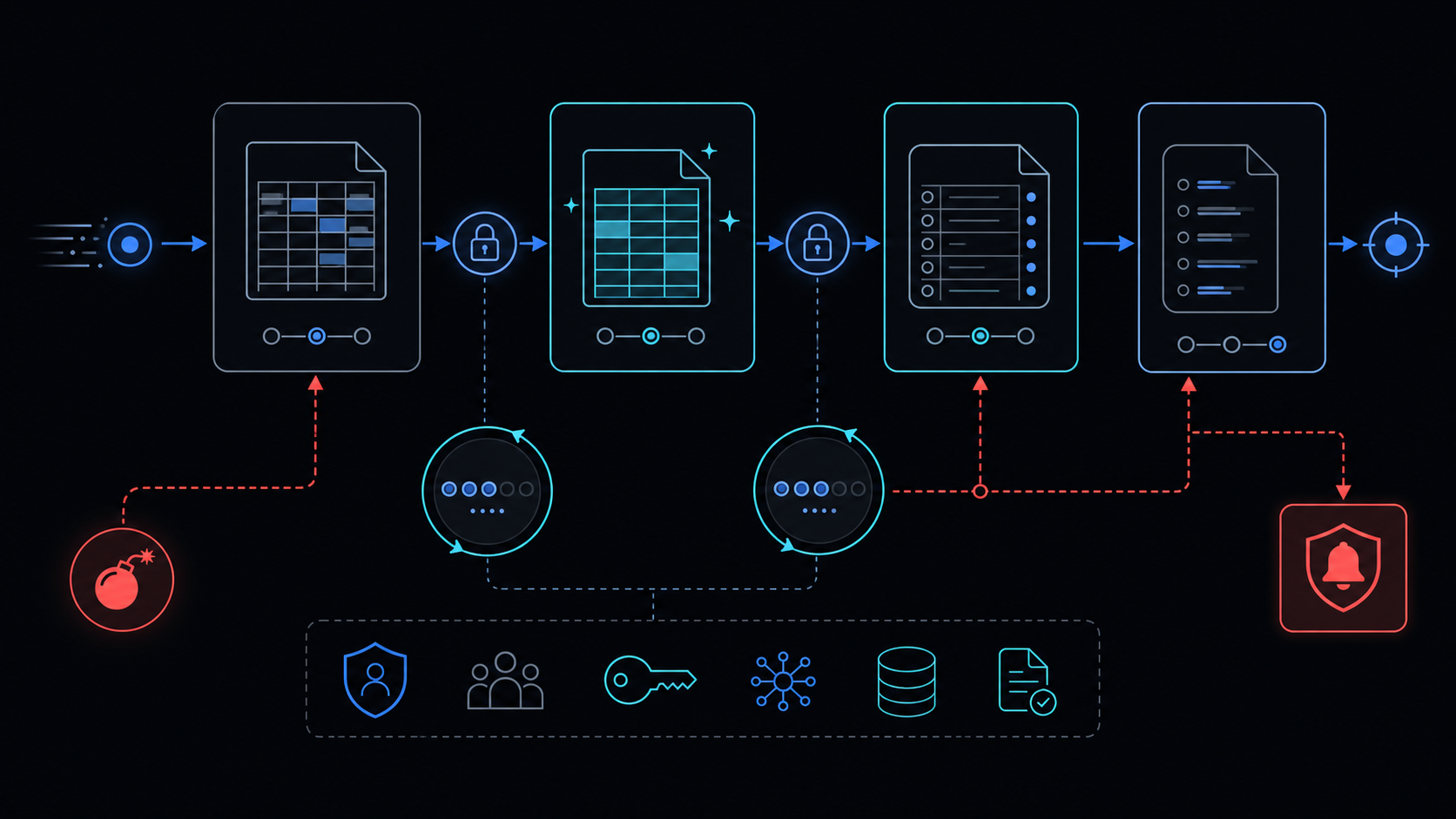 Differentiate spreadsheet, sheet, range, and script execution account levels. Granting direct edit rights to user accounts neutralizes protected ranges.
2. Separating Protected Ranges from Script Execution
Even with protected ranges set, a script running under owner credentials can bypass them. Use installable triggers and deploy the script under a dedicated service account.
3. Audit Log Design
Grant only viewer access to the log sheet for all users; only the script may write.
Hard-code the log sheet ID and combine openById with LockService to handle concurrency.
4. Approval Log Schema
{
  "timestamp": "ISO8601",
  "requestId": "string",
  "actor": "email",
  "action": "approve|reject|comment",
  "targetRange": "A1:B10",
  "previousValue": "string",
  "newValue": "string"
}
5. Implementation Path
- Apply protected ranges on main sheet
- Create dedicated log sheet and set viewer permissions
- Register installable onEdit trigger
- Protect append logic with LockService
6. Failure Modes
- Concurrent approvals cause duplicate log rows
- Script execution account change bypasses protection
- Six-minute execution limit exceeded
7. When Not to Use This Approach
When users exceed 50 or external audit requirements such as SOX or ISO27001 exist, migrate to a dedicated workflow tool.
8. Internal References
- Apps Script Automation Guide
- LockService Concurrency
- Six Minute Limit
- Spreadsheet Inventory Limits
- When to Leave GAS
Final review criteria
The useful question is not how many features the automation has. It is whether the workflow can be understood, recovered, and safely rerun after something goes wrong.
- Raw input is separated from the human-facing working view.
- Each run records success, failure, processed count, and error message.
- Replaying the same input does not create duplicate results.
- Permission changes, quota errors, and external API failures are visible later.
For low-risk internal tasks, that may be enough. For customer replies, booking confirmation, inventory updates, payments, or legal records, the threshold is higher: compare Apps Script against a dedicated SaaS or a small server-backed system before relying on it.