
Sheets Turns Your Text Into a Date: When '2026-06' Blocks Completion Forever
Google Sheets silently coerces strings like '2026-06' into a Date. When save, read, and compare each compute the month differently, completion is rejected forever. What gets coerced, how to pin cells to text and guard on read, plus batch writes and formula injection.
A Sheet is not a database. It changes your text into types on its own. Put "2026-06" in a cell and Sheets coerces it into a Date, not a string. When save, output, and completion each compute “which month” differently, entering yesterday’s date makes the three disagree — and completion is rejected forever.
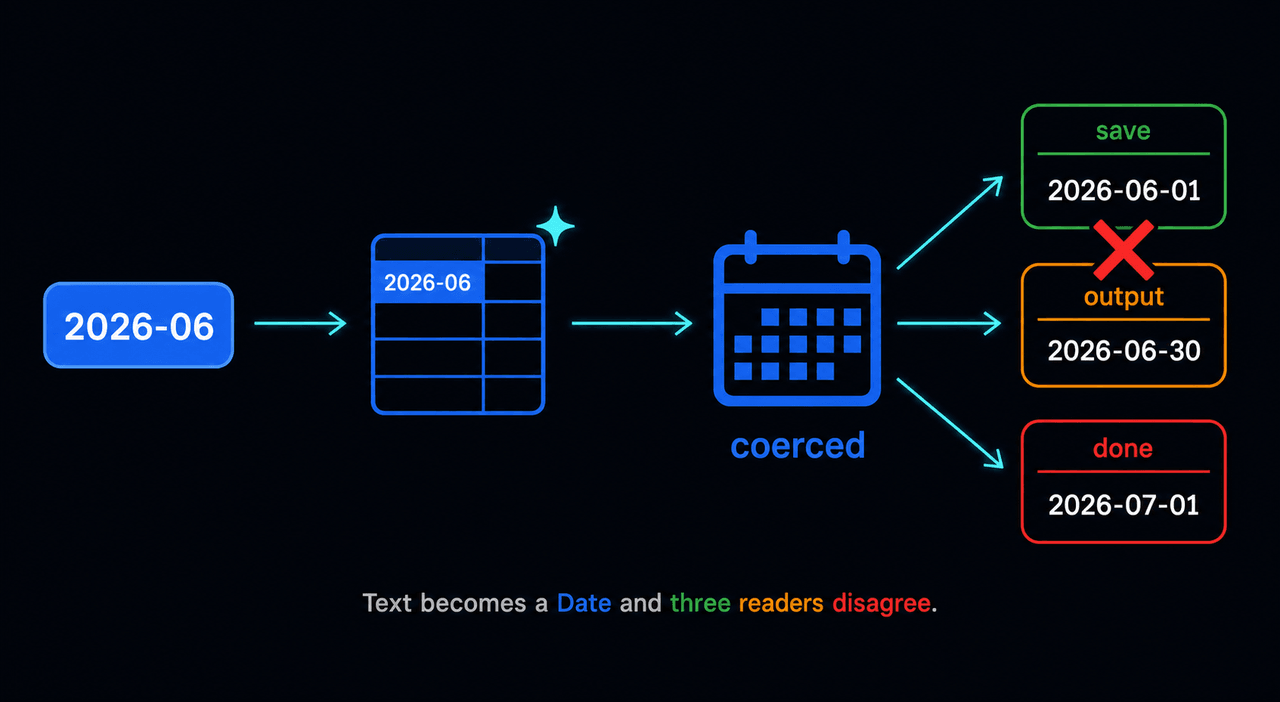
Why it matters
This throws no error. Saving works, the screen looks fine, only the Done button won’t press. Because the cause is Sheets’ type coercion, not your code, no amount of log-reading shows it. And this trap isn’t only about dates.
What gets coerced
Common cases where the value stops being the type you wrote the moment it enters a Sheet:
| What you write | What Sheets makes it | Symptom |
|---|---|---|
2026-06, 3/4, 1-2 | Date | month/day math drifts |
010-1234-5678 | number (leading zero lost) | phone number broken |
1234567890123456 | exponent 1.23E+15 | order id / barcode corrupted |
starts with =, +, -, @ | interpreted as formula | errors, formula injection |
TRUE / FALSE | boolean | string compare fails |
So “what the user typed as text” comes back “as a different type on read.” Assume a type per function without knowing this and it drifts silently.
The wrong way: three paths each compute the month
The classic shape of AI-written code — each function is individually “reasonable,” but each assumes a different cell type.
// Save path: assumes a string
const savedMonth = String(row[COL.month]);              // a Date becomes "Mon Jun 01 2026..."

// Output path: assumes a Date
const outMonth = row[COL.month].getMonth() + 1;         // a string → getMonth is not a function

// Completion path: assumes a sliceable string
const doneMonth = row[COL.month].slice(0, 7);           // "2026-06", or it explodes

// → the three produce different values, and completion (savedMonth === doneMonth) never matches
The moment three places read one cell differently, a single yesterday’s date blocks completion.
The fix: pin to text on write, normalize in one place on read
Set the cell format to text (@) first, then write. On read, even if it came back as a Date, normalize to YYYY-MM in the spreadsheet timezone. Make every read go through this one function.
const MONTH_RE = /^\d{4}-\d{2}$/;

// Write: set the format to text first, then the value → Sheets can't make it a Date
function writeMonthCell_(range, month) {          // month = "2026-06"
  range.setNumberFormat("@").setValue(month);
}

// Read: even if it's a Date, normalize to "YYYY-MM" in the sheet timezone (single source of truth)
function readMonthCell_(value) {
  if (Object.prototype.toString.call(value) === "[object Date]") {
    const tz = SpreadsheetApp.getActiveSpreadsheet().getSpreadsheetTimeZone();
    return Utilities.formatDate(value, tz, "yyyy-MM"); // Date → string
  }
  const text = String(value).replace(/^'/, "").trim();
  if (!MONTH_RE.test(text)) throw new Error("BAD_MONTH_CELL: " + value);
  return text;
}
For bulk writes, don’t call setNumberFormat per cell — the API calls explode. Set the whole column’s format once and write with setValues.
// Bulk write: format and values in ONE call each (no per-cell loop → batch)
const col = sheet.getRange(2, COL.month, months.length, 1);
col.setNumberFormat("@");                          // whole column to text format
col.setValues(months.map((m) => [m]));            // values in one shot
When writing user input, block formula injection too. A leading =, +, -, or @ makes Sheets execute it as a formula.
// Formula-injection guard: prefix a ' to force text if it starts with a risky char
function sheetSafeCell_(v) {
  const s = String(v);
  return /^[=+\-@]/.test(s) ? "'" + s : s;
}
Easy to miss
- Normalize in one place. If save, output, and completion each compute the month, they drift. Route every read through the single
readMonthCell_. - Format before value.
setNumberFormat("@")aftersetValueis too late. Set the format first to block the coercion. - Timezone. Reading a Date with
getMonth()slips a day at month boundaries when the script timezone differs from the sheet timezone. Format againstgetSpreadsheetTimeZone(). - Checksum drift. When a Date cell feeds a checksum or comparison, pin its representation with
toISOString()or the checksum drifts even when nothing changed. - Batch. Do formats and values with
getValues/setValuesin one call. A per-cell loop is the exact trap from batch service calls.
Deeper: before you write, ask “how will Sheets read this?”
For every cell you write, suspect the interpretation once. Especially the tab you serve from — keep formulas, IMPORTRANGE, and filter views out of it; a code rollback can’t undo formula corruption. One line to keep: pin text you write to a text format, and guard the type when you read.
Frequently asked questions
- Why does '2026-06' turn into a date in Google Sheets?
- Sheets auto-coerces any date-looking string into a Date the moment you enter it. To stop it, set the cell number format to text (@) before writing the value, or prefix the value with a single quote (').
- How do I tell whether a cell value is a string or a Date in Apps Script?
- Use Object.prototype.toString.call(value) === '[object Date]'. typeof returns 'object' for a Date, so it can't distinguish. If it's a Date, normalize it back to a string using the spreadsheet's timezone.
- Why does saving work but completion fails?
- If the save, output, and completion paths each compute 'which month' differently, then the moment Sheets turns the value into a Date the three disagree and the comparison fails. Route every month read through one normalization function.
- Is user input starting with = or + dangerous in Sheets?
- Yes. Strings starting with =, +, -, or @ are interpreted as formulas, which is a formula (CSV) injection risk. When writing user input to a cell, escape those prefixes or force a text format.